Oracle RADIUS (Duo, Okta MFA) sign-in and tnsnames.ora on the Mac
Posted by Kyle Hankinson
More and more Oracle shops are moving their databases behind RADIUS, with Duo or Okta supplying the second factor. The database stops checking your password itself and hands the sign-in to a RADIUS server, which may send a push to your phone before it lets you in. If your tools do not speak RADIUS, the login fails with ORA-01017 no matter how carefully you type the password, and the usual advice is "use SQL Developer".
SQLPro Studio and SQLPro for Oracle now sign in to Oracle through RADIUS, and on the Mac they can also read your connections straight from tnsnames.ora. Neither needs Oracle Instant Client, Java or a JDBC driver.
RADIUS sign-in
If you have set this up in SQL Developer, you added a property to the connection: oracle.net.authentication_services with the value RADIUS. The setting here is the same idea with a friendlier name.
Open an Oracle connection (a new one or one you already have) and change Authentication from "Database password" to RADIUS (MFA). Enter your login and password as usual and connect.
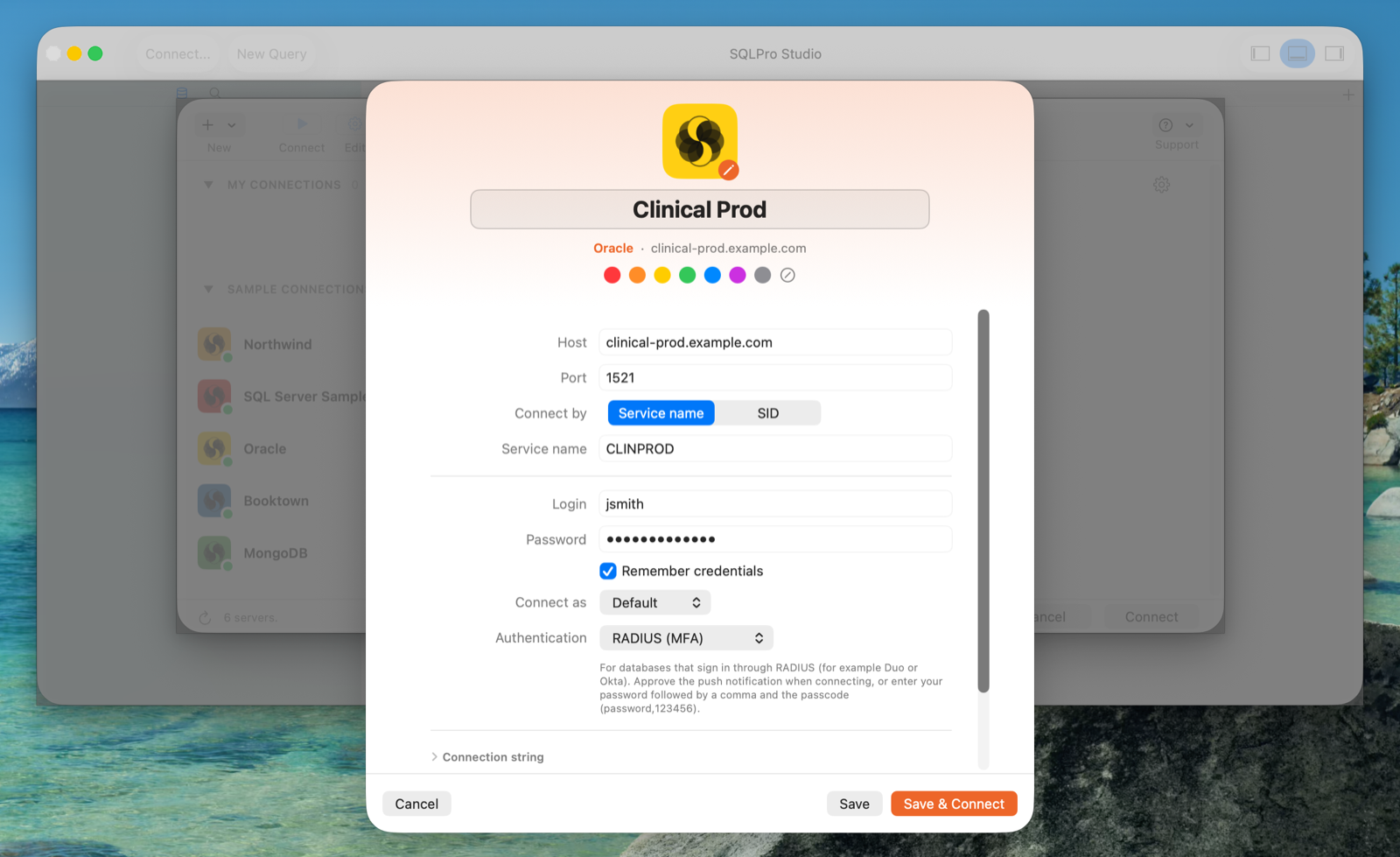
What happens next depends on how your organization set up the second factor:
- Push notification. The connection waits while Duo or Okta sends the push to your phone. Approve it and the connection opens. The app waits up to two minutes, so there is no rush.
- Passcode. If you use a code from an authenticator app or a hardware token, type it after your password, separated by a comma:
mypassword,123456. This is the convention Duo and most RADIUS servers use. - No prompt at all. Some sites switch the database to RADIUS first and turn the second factor on later. In that case it simply connects.
One sign-in per connection
A database client normally opens several sessions behind your back: one for the sidebar, one per query tab, another for background lookups. With RADIUS each new session is a new login, which would mean a push for every tab you open.
To avoid that, a RADIUS connection shares one signed-in session across the whole window and reuses it for the sidebar, your tabs and everything else. You approve one push when you connect, and that is normally the only one. The exception is when two things truly have to run at the same moment, for example a long query in one tab while you run another in a second tab. The app waits up to ten seconds for the first to finish, and only then opens one more session, which costs one more approval.
Clearer errors
When the RADIUS server turns a sign-in down, Oracle reports the same ORA-01017 it uses for a mistyped password. The app adds a line saying the RADIUS server rejected the sign-in and what to check: the password, the push, or a passcode. A push that nobody approves is reported as a timed-out MFA sign-in instead of a bare network timeout.
Connections from tnsnames.ora
Most Oracle sites keep their connection list in a tnsnames.ora file, often next to a sqlnet.ora, and the DBA team updates it when servers move. Retyping every host, port and service name into another tool is tedious, and it goes stale the first time something changes.
On the Mac you can now point the app at the folder that holds those files:
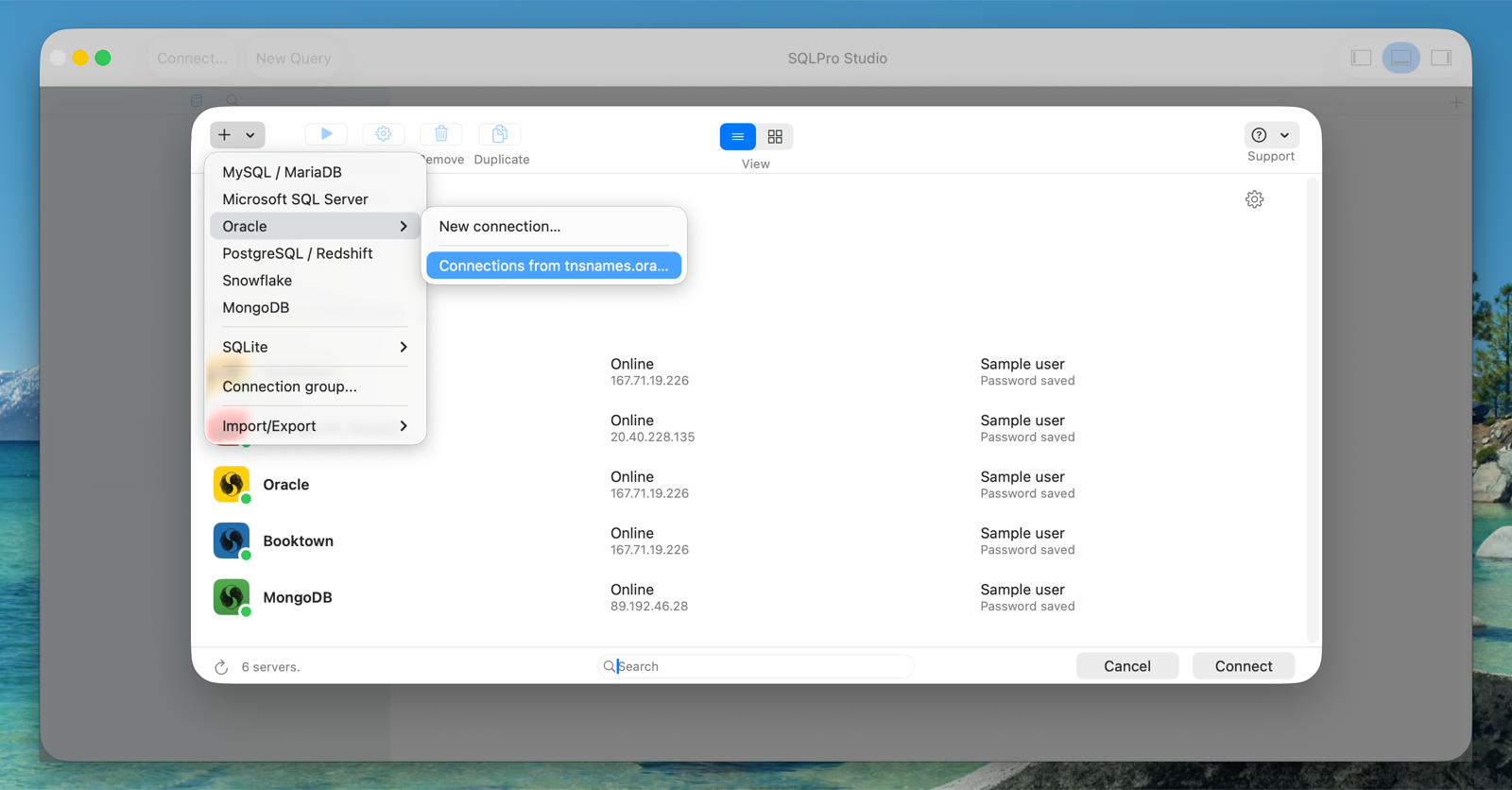
- Open the connection window and choose New > Oracle > Connections from tnsnames.ora...
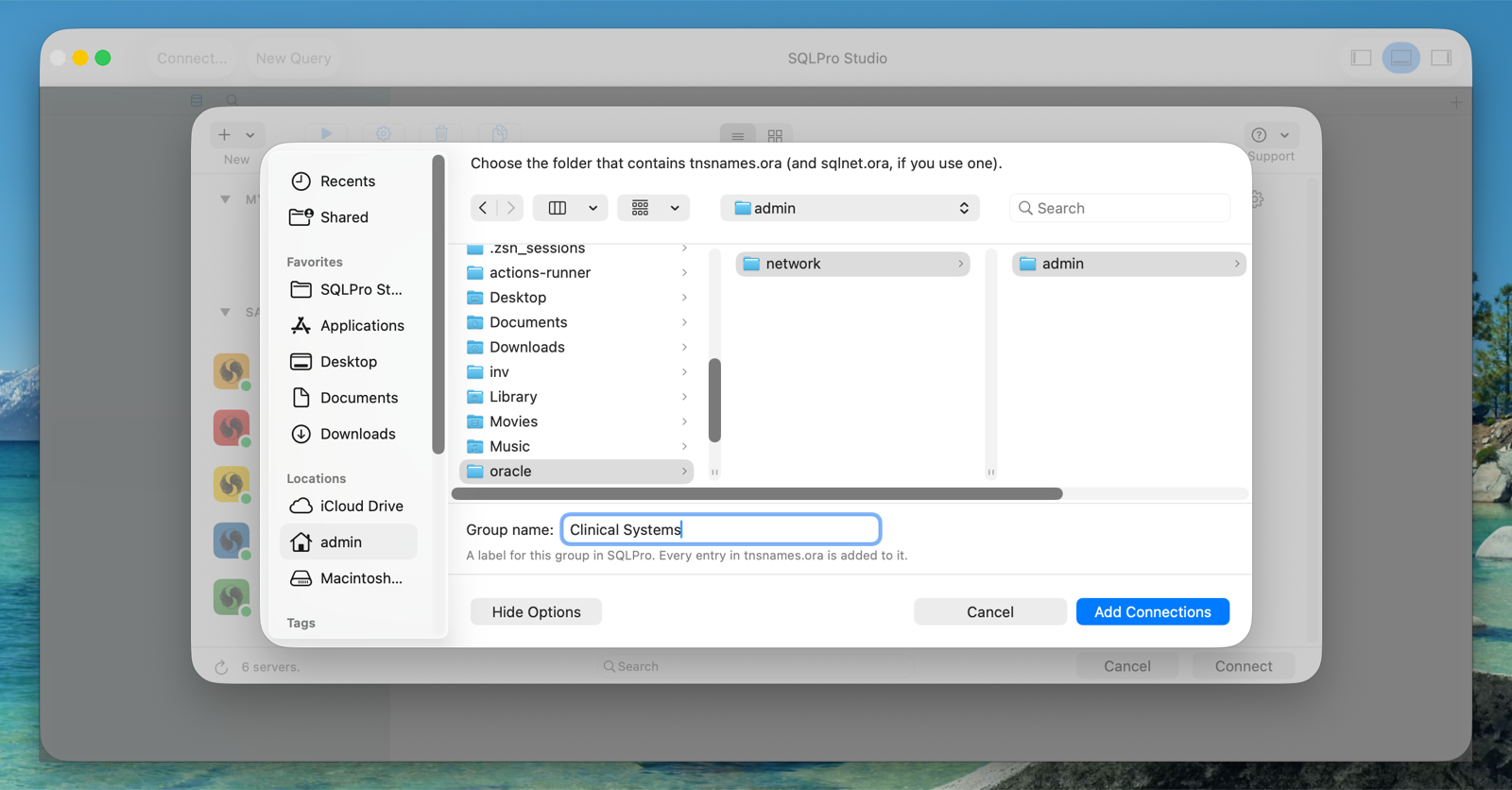
- Pick the folder that contains
tnsnames.ora(the one Oracle callsTNS_ADMIN;~/.oracleis a common home for it, and the dialog shows hidden folders). - Give the group a name. It is only a label; every entry in the file is added.
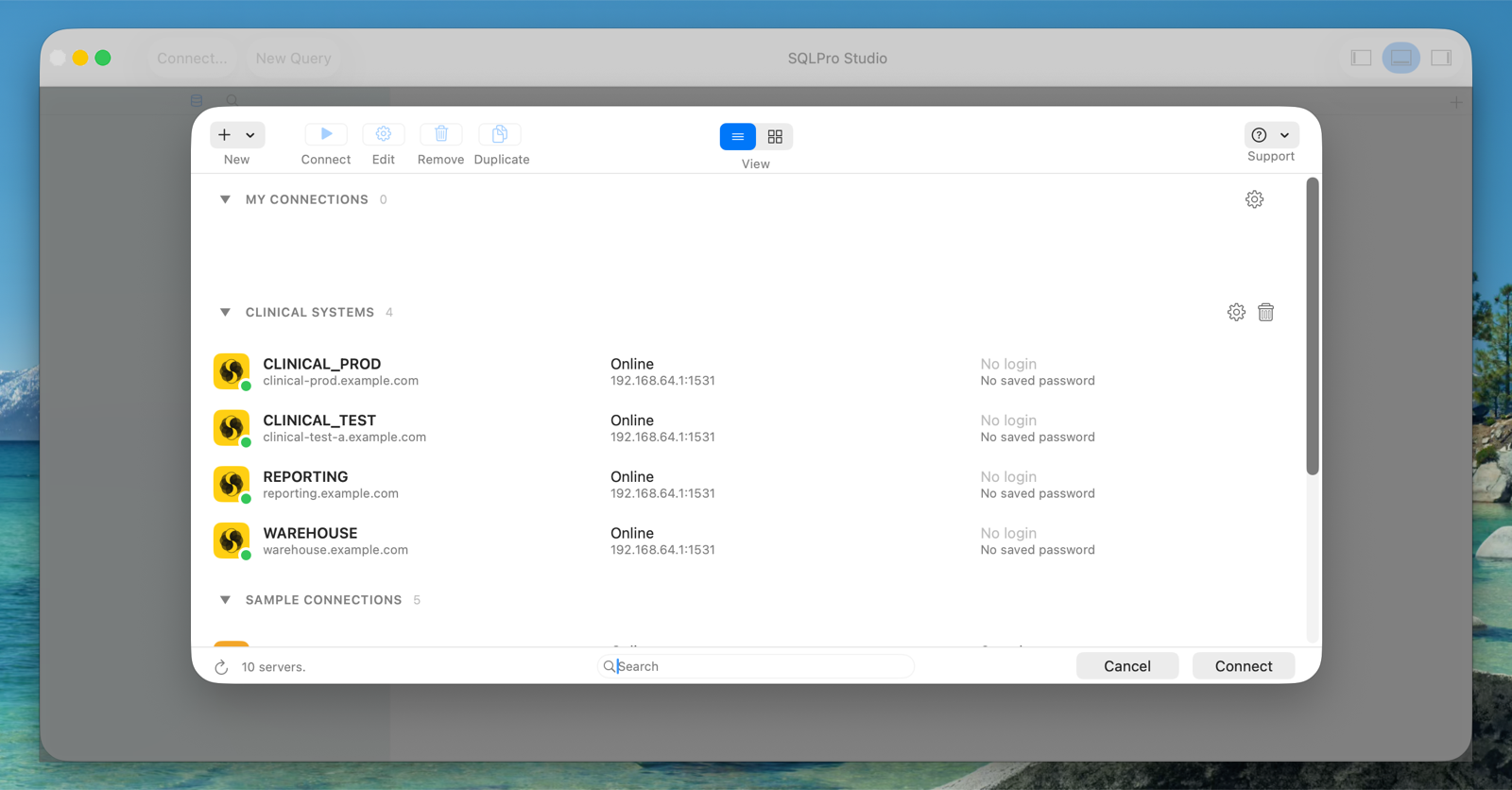
The entries appear as their own group in the connection list, one row per alias.
The file stays in charge
The group is read from the folder every time the connection window opens. When the DBA team adds a database or moves one to a new host, it shows up the next time you open the window, with no import step to repeat. Rows in the group cannot be deleted or re-pointed from inside the app, because the file is the source of truth.
A few details:
sqlnet.orais honored for sign-in. If it containsSQLNET.AUTHENTICATION_SERVICES = (RADIUS), every connection in the group defaults to RADIUS. You can still change it per connection.- Failover lists work. An entry with several addresses tries them in order and skips a dead one after five seconds. A
DESCRIPTION_LISTwith a primary and a standby is tried one description at a time. IFILEincludes are followed, as long as the included file is inside the folder you picked.- Entries the app cannot use are skipped and counted. Local
IPCandBEQentries need an Oracle client on the same machine, so the group title tells you how many were left out instead of failing the whole file.
Your login is still yours
tnsnames.ora is an address book. It says where each database is, not who you are, so the first time you connect to a row the app opens its settings and asks for your login and password. After that it remembers them.
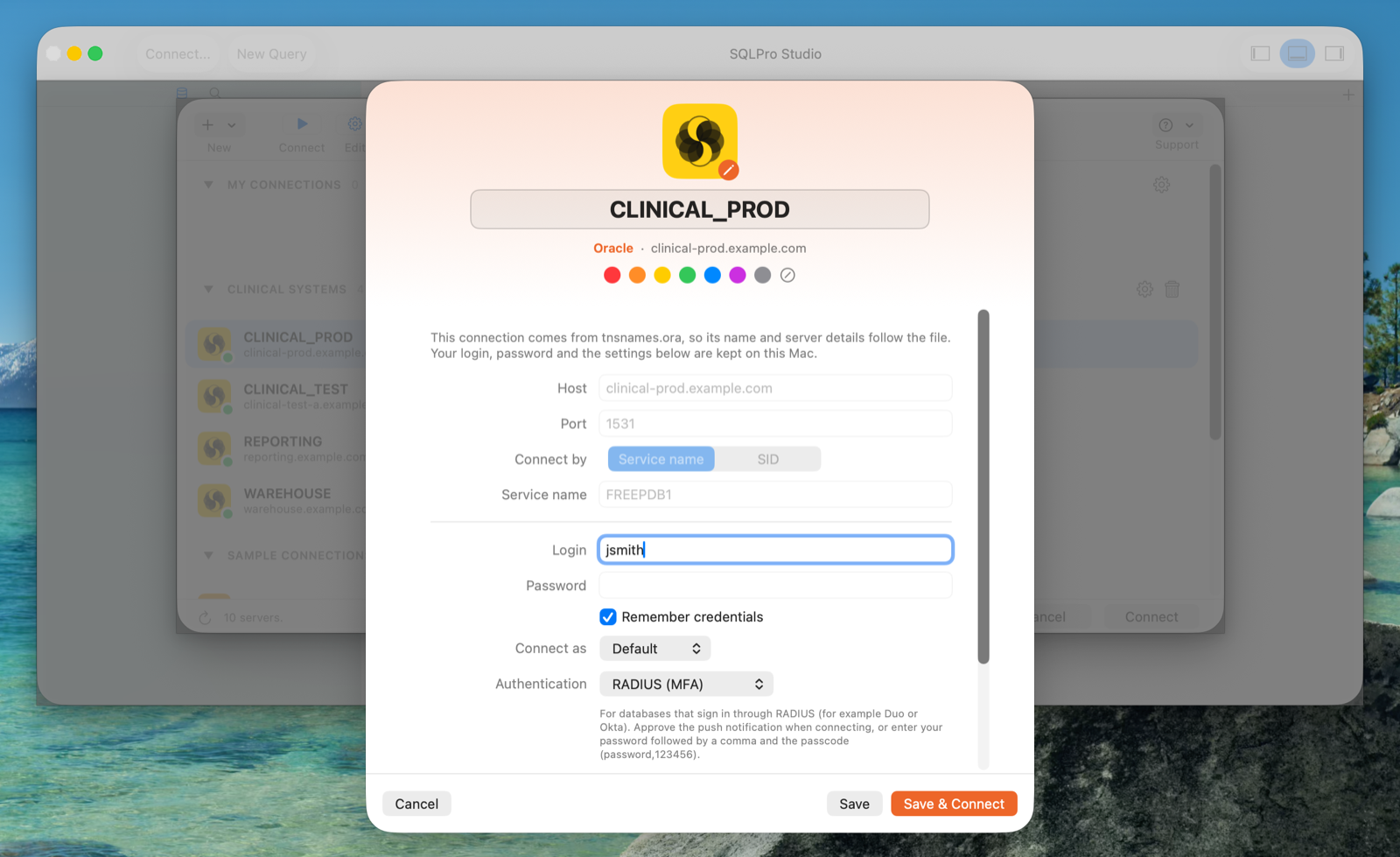
What you add is kept separately from the file and stays on your Mac: the login, authentication and color in the app's own settings, and a remembered password in your Mac's keychain. These connections are deliberately left out of iCloud sync, so a list that belongs to your employer does not end up on your other devices. Renaming the group keeps every saved login attached. Removing the group forgets the folder and deletes those saved logins; the files themselves are never changed.
Prefer to paste a single entry?
You do not have to use the folder. The Connection string field of an ordinary Oracle connection now accepts a full descriptor, or a whole entry copied out of tnsnames.ora, spaces and line breaks included:
CLINICAL_PROD =
  (DESCRIPTION =
    (ADDRESS = (PROTOCOL = TCP)(HOST = clinical-prod.example.com)(PORT = 1521))
    (CONNECT_DATA = (SERVICE_NAME = clinprod))
  )
When that field is filled in, it takes the place of the host, port and service fields.
What is not covered yet
- Challenge-response RADIUS. Setups where the server answers with a question and expects a typed reply in a second step are not supported. Push approval and the
password,passcodeform are. - RADIUS over TCPS only. Oracle 23ai and later prefer RADIUS over an encrypted TCPS listener by default. If your server accepts nothing else, this release will not connect to it yet.
- iPhone and iPad get the RADIUS sign-in but not the
tnsnames.oragroups.
On the server side nothing changes for this feature. Your DBA has already done the work if RADIUS logins function in SQL Developer. Oracle documents that setup in Configuring RADIUS Authentication, and the file formats in Local Naming Parameters in the tnsnames.ora File and Parameters for the sqlnet.ora File.
Where to get it
Both features are in version 2026.317 for macOS, which you can download here. The Mac App Store versions and the iPhone and iPad apps follow with their next updates.
If a connection that works in SQL Developer does not work here, we want to know. Use the Support button in the connection window and include the error message and your Oracle server version (select banner from v$version). If you are sorting out service names versus SIDs at the same time, our guide to ORA-12514 and ORA-12154 covers that part.
About the author - Kyle Hankinson is the founder and sole developer of SQLPro for MySQL and the Hankinsoft Development suite of database tools. He has been building native macOS and iOS applications since 2010, and now ships SQLPro on Windows and Android as well.
Try SQLPro for MySQL - A native MySQL and MariaDB client for macOS, iOS, and Android. No Java required.
Download Free Trial View Pricing Compare